Download 3DXChat and get access to the full game in just a few steps.
Quick note: to download the installer, you first need an active subscription. Once your account is active, you can log in to the members area, where you can download the installer and start the setup process.
How to get 3DXChat
Getting started is straightforward:
- Create your account
- Log in to the members area
- Click the download link on your dashboard
As soon as your account is active, the download becomes available. There’s no waiting period and no manual approval.
Where to find the 3DXChat download
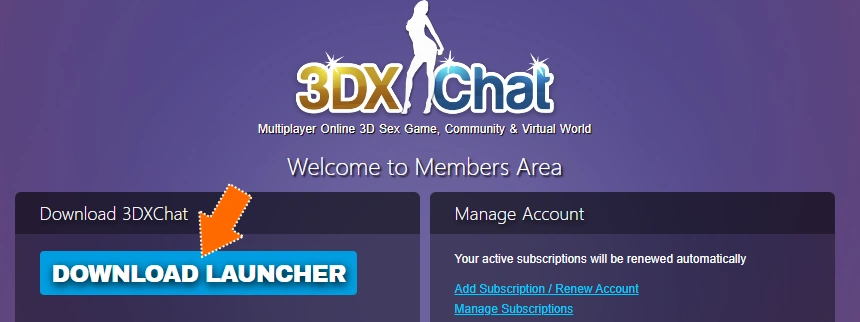
Logging in will take you straight to the members area, where the download link is located.
You won’t receive a file by email, and there is no external download page. The installer is only accessible inside your account. Once you know where to look, it’s immediately visible. Here’s a screenshot of the button in the members area:
What you download
The download is a ZIP file, which contains the 3DXChat launcher. It is not the full game yet.
Next, your browser will ask where you want to save the file. Pick any location that’s easy to remember for you (for example, your downloads folder) and hit save.

As soon as you run the launcher, it will:
- download the full game files
- extract and prepare everything automatically
- complete the installation process
The ZIP file is simply the starting point. The actual game installation happens when the launcher runs.
What happens after downloading
Once the ZIP file is saved to your computer:
- open the file
- extract all contents
- run the launcher

From that point on, the setup continues automatically.
👉 See the full installation guide
This whole process is handled by the launcher itself, so there’s little to no manual setup required after this point.
What to expect during setup
When you run the launcher for the first time:
- it connects to the servers
- starts downloading the full game
- unpacks files in the background
At first, it may not show much activity. This is normal. The launcher can take a moment before showing visible progress, especially on first launch.
Let it continue running without closing it early.
Requirements before downloading
Make sure your setup is ready:
- Windows PC (3DXChat is not available on Mac)
- enough disk space for several GB of game data
- stable internet connection for the download
Access and subscription
To download 3DXChat, you need an active account.
This means:
- you complete the signup process
- your account is activated immediately
- you log in to access the download
Everything is handled through the members area. Once you’re in, you have direct access to the installer and future updates.
Common questions about the download process
These questions come up frequently:
Where is the download button?
Inside your account dashboard after logging in
Why didn’t I receive a download link by email?
The download is not sent as a file. You access it through your account
Is the ZIP file the full game?
No. It contains the launcher that downloads the full game
Do I need to install anything manually?
No. The launcher handles most of the setup automatically
Can I download the game without creating an account?
No. Access to the installer is tied to your account
After installation
Once the game is installed, you can just start it up, log in, and start using your account.
From there:
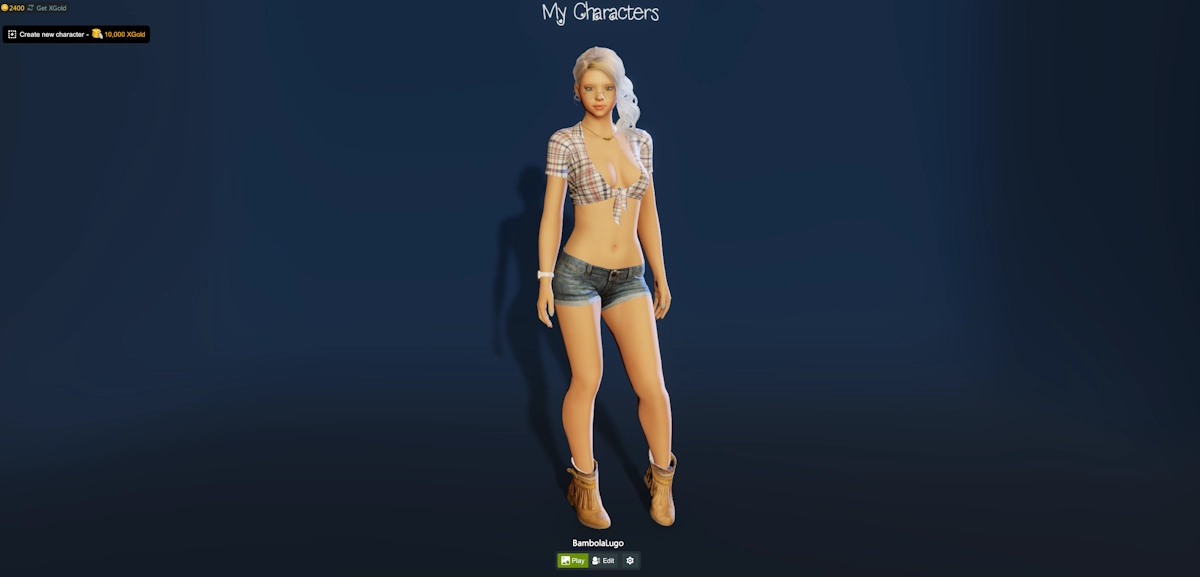
- create your avatar
- enter the game world
- start exploring
Start your 3DXChat download
Once your account is active, you can download the installer immediately and begin setup.